


1. Accessing the PWA Service Desk
To manage tickets on the go, you can access the system via any mobile phone browser.
- Open Google Chrome (recommended) or Safari on your mobile device.
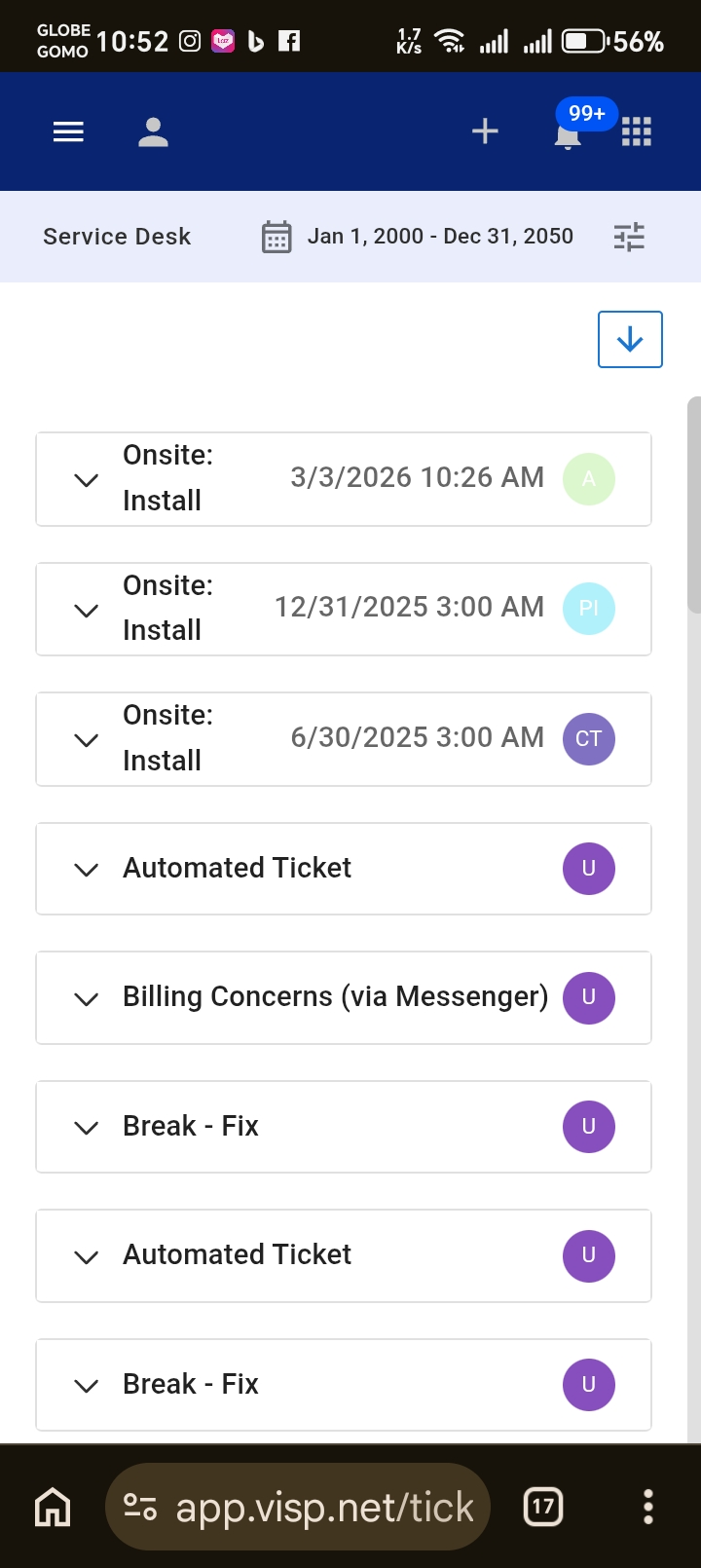
- Navigate to your Visp instance/URL (e.g., app.visp.net) and log in.
- Select the Service Desk icon from the navigation menu.
2. Optimizing Access (Add to Home Screen)
To simplify launching the application in the future, you can convert the web page into a desktop-style shortcut or app.
- While the app is open in Chrome, locate the Address Bar.
- Click on the Three Vertical Dots (⋮) menu.
- Select Add to Home Screen.
- Confirm the prompt to create a shortcut or install the tool as an app on your phone’s home screen.
3. Filtering and Sorting Tickets
The mobile view uses an improved format to prioritize current workloads.
- Use the Date Range filter at the top of the screen to select a specific timeframe, such as tickets created today.
- View the condensed list of active tickets, which includes the Ticket ID, Summary, Priority, and Status.
- To manage your screen space, click the Arrow Icon on the upper right side of a ticket card to Minimize or Maximize the ticket details.
4. Managing Ticket Details
The mobile interface leverages the New Ticket Drawer for an optimized touch experience.
- Locate the subscriber’s Phone Number or Ticket ID on the main card for quick reference.
- Click the View Ticket button to open the full ticket details.
- Review or modify critical information, such as the Status or Subscriber Summary, using the mobile-optimized drawer.